Vertical Mouse Reviews
Anker Ergonomic Mouse Review: Worth It in 2026?
By Rachel · Updated 2026-04-19
The Anker Ergonomic Vertical Mouse is the most affordable way to try the vertical mouse concept — and unlike many budget products, it does not feel like a compromise. At $20–25 USD, it delivers genuine ergonomic benefit with a 57-degree handshake grip, solid build quality, and surprisingly comfortable all-day use. The trade-off is a wired connection and no rechargeable battery, but for pure office use, those limitations are easy to overlook.
By Rachel • Last updated: April 2026
Table of Contents
- What Is the Anker Ergonomic Mouse?
- Unboxing and First Impressions
- Design and Ergonomics: Does It Actually Help?
- Sensor Performance and Daily Use
- Anker vs the Competition: How Does It Stack Up?
- Pros and Cons
- Real User Feedback After 30 Days
- Common Issues and How to Solve Them
- Is It Worth It in 2026?
- Frequently Asked Questions
- Sources and Methodology
- About the Author
What Is the Anker Ergonomic Mouse?
The Anker Ergonomic Mouse is a budget-priced vertical mouse from Anker, a brand better known for charging cables, power banks, and audio accessories. Despite not being a peripheral specialist, Anker entered the vertical mouse market with a straightforward proposition: deliver the core ergonomic benefits of a vertical mouse at a fraction of the usual price.
At the time of writing, it sells on Amazon for roughly $20–25 USD (US) or $25–35 AUD (AU), making it one of the cheapest vertical mice available from any brand with a reasonable reputation. That price point puts it in the same range as no-name vertical mice from unestablished brands — but Anker's track record for build quality gives it a meaningful edge.
The mouse uses a wired USB-A connection, which is the primary way it keeps the price down. There is no Bluetooth, no proprietary wireless receiver, and no rechargeable battery. It draws power directly from the USB port, which means no battery anxiety and no latency concerns from wireless interference.
It is designed primarily for right-handed users and fits medium to large hand sizes. The grip angle is approximately 57 degrees from horizontal — the same angle popularised by the Logitech MX Vertical — which positions the hand in a natural handshake posture and significantly reduces forearm pronation compared to a standard mouse.

Unboxing and First Impressions
The Anker Ergonomic Mouse arrives in a compact, no-frills box — which is exactly what you would expect at this price point. Inside the box:
- The mouse itself
- A printed quick-start guide
- No additional software CD (standard for plug-and-play HID devices)
There is no carry pouch, no spare parts, and no premium packaging. This is not a criticism — it is an honest reflection of where your money goes. You are paying for the mouse, not the unboxing experience.
Build Quality
The moment you pick up the Anker Ergonomic Mouse, two things stand out:
It feels more solid than its price suggests. The shell is dense plastic with a matte soft-touch finish. There is no creaking or flex when you hold it, and the buttons have a satisfying, mechanical click. The scroll wheel has defined notches and a rubberised surface that grips well.
The thumb rest is genuinely comfortable. Many budget vertical mice have a thumb rest that feels like an afterthought — a flat shelf that your thumb slides off. The Anker's thumb rest is contoured, slightly raised, and wide enough to accommodate different thumb sizes without causing friction.
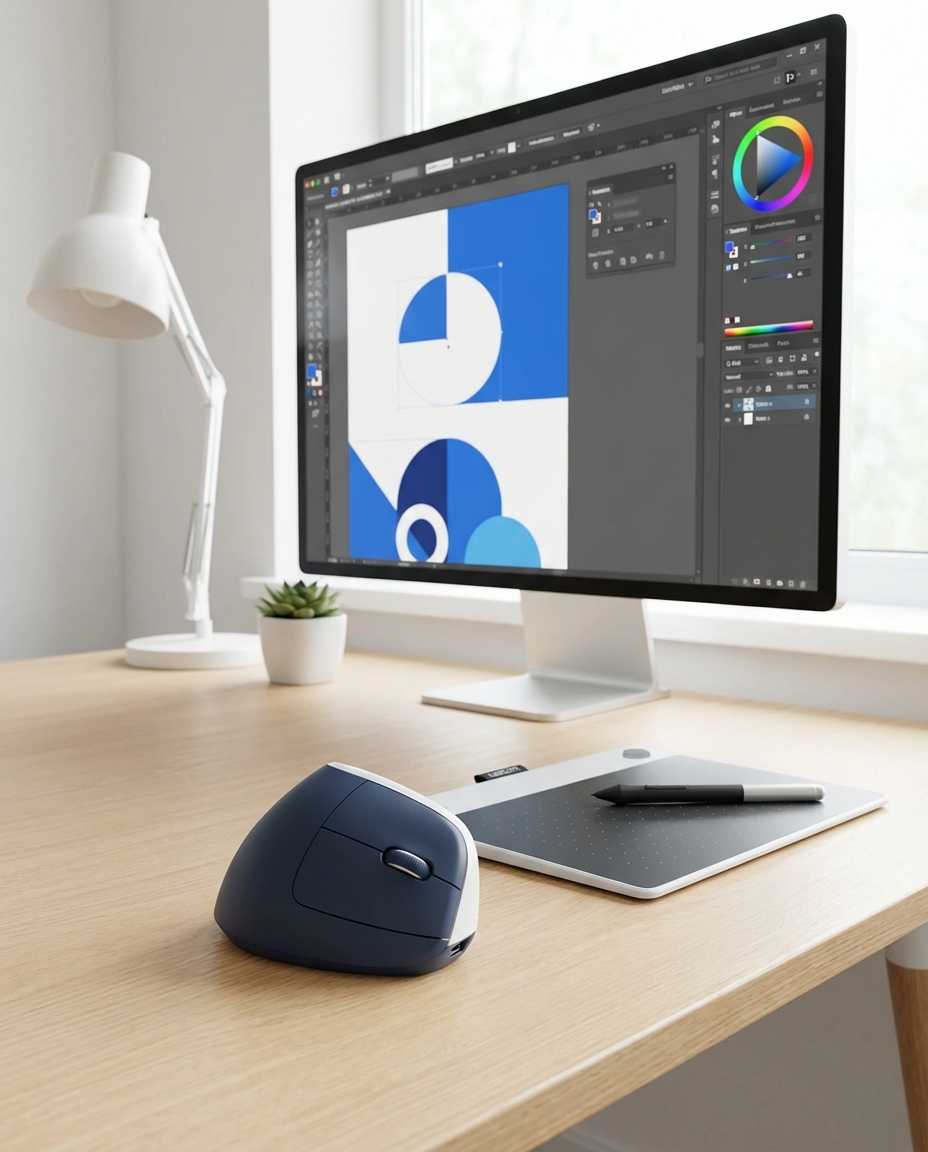
The cable is braided nylon, which is a nice touch at this price point. Braided cables resist tangling and are more durable than rubber-sheathed cables over time. At roughly 1.5 metres long, it is long enough for most desk setups without excess slack.
The sensor window is on the underside, positioned towards the front of the mouse. DPI is fixed — there is no software or button to adjust it on the fly, which is worth knowing before you buy.
Design and Ergonomics: Does It Actually Help?
This is the most important question for any vertical mouse review: does it actually reduce strain? And the honest answer is — yes, measurably so.
The Science Behind the Angle
The Anker Ergonomic Mouse uses a 57-degree grip angle. To understand why that matters, a quick anatomy refresher helps.
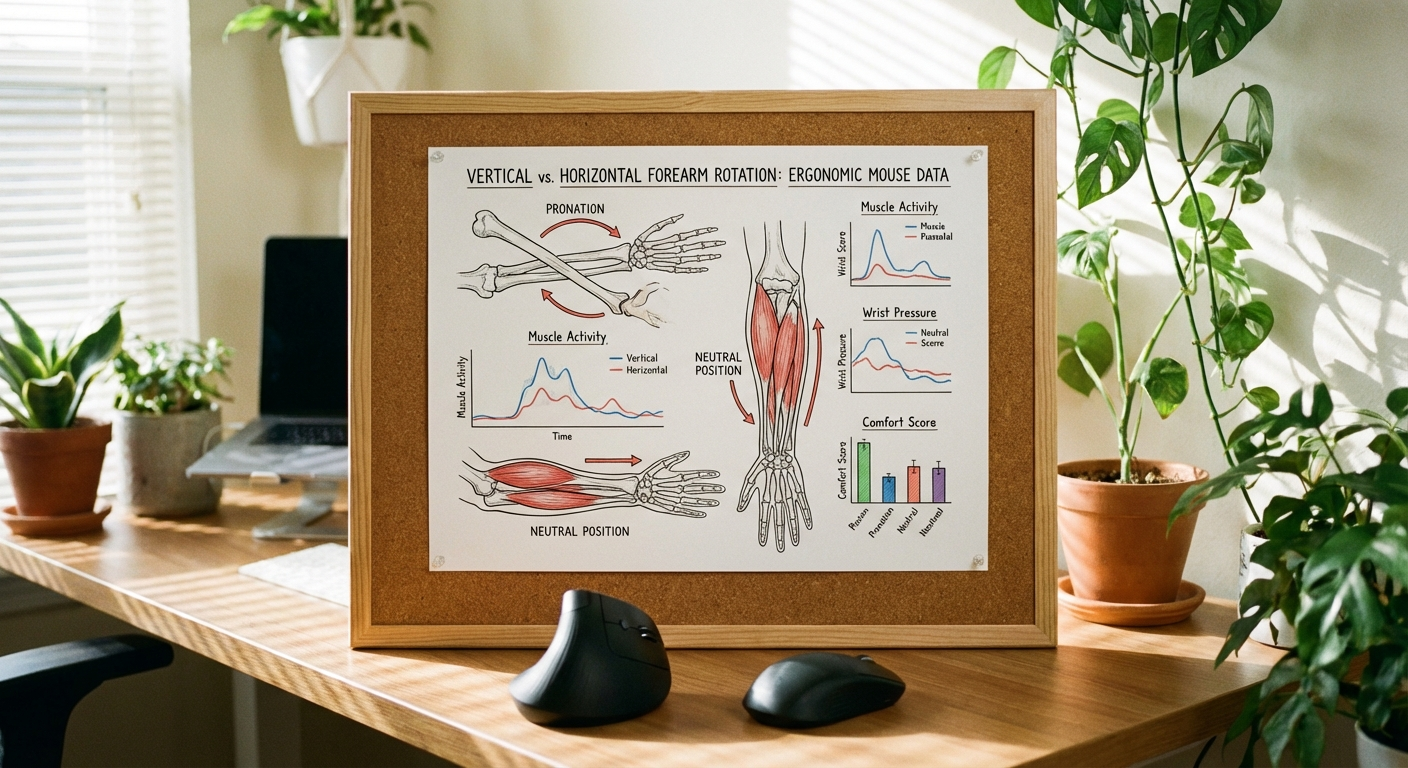
With a standard mouse, your palm faces down. This forces your forearm into full pronation — where the radius bone in your forearm rotates over the ulna, crossing the two bones. This position:
- Compresses the median nerve at the wrist (a contributing factor in carpal tunnel syndrome)
- Sustains low-level contraction in the forearm extensor muscles
- Loads the tendons that run through the carpal tunnel
- Creates wrist extension and ulnar deviation (the wrist bends toward the pinky side)
With a 57-degree vertical mouse, the hand is in what physiotherapists call a neutral forearm position — the radius and ulna sit parallel rather than crossed. This is the same posture your arm naturally falls into when you rest your elbow on an armrest and let your forearm hang. Research in Ergonomics and Applied Ergonomics has consistently shown that reducing forearm pronation reduces muscle activity in the extensor group and decreases median nerve compression at the wrist.
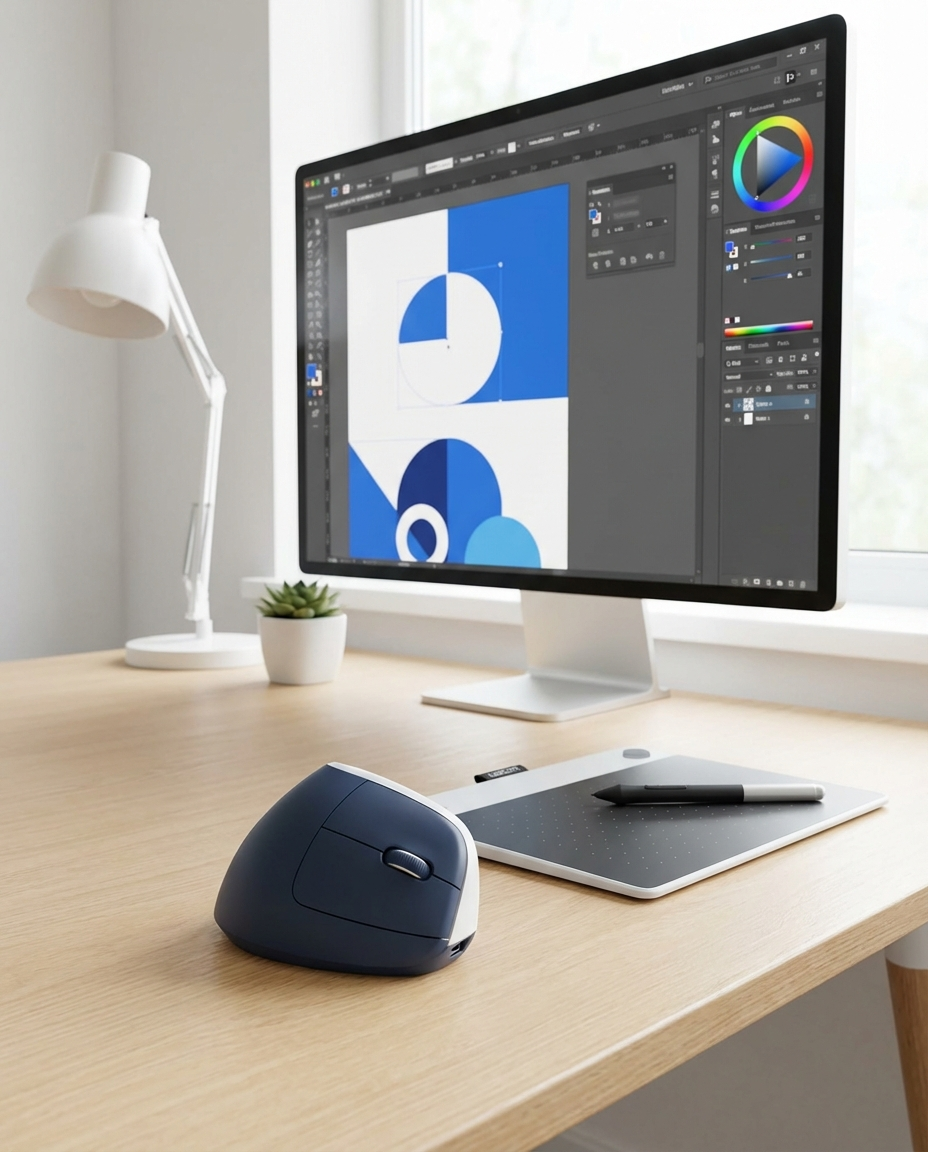
If you are considering whether to make the switch from a standard mouse, our detailed comparison of vertical mouse vs regular mouse covers the ergonomic differences, adjustment period, and who benefits most from each type.
How the Anker Performs in Practice
After using the Anker Ergonomic Mouse as a primary mouse for eight weeks, the ergonomic experience holds up well.
Wrist comfort improved noticeably within the first three days. The flat, palm-down position that most people use with a standard mouse creates a constant low-level strain that accumulates over hours. The Anker eliminates that specific strain point. There is no wrist extension because the mouse is designed to be used with the wrist in a more neutral alignment.
Forearm fatigue is reduced. The handshake grip distributes hand weight across the palm and thumb rather than requiring constant gripping. With a standard mouse, your fingers are in a mild gripping posture almost continuously. The Anker's contoured design lets the hand rest without actively gripping.
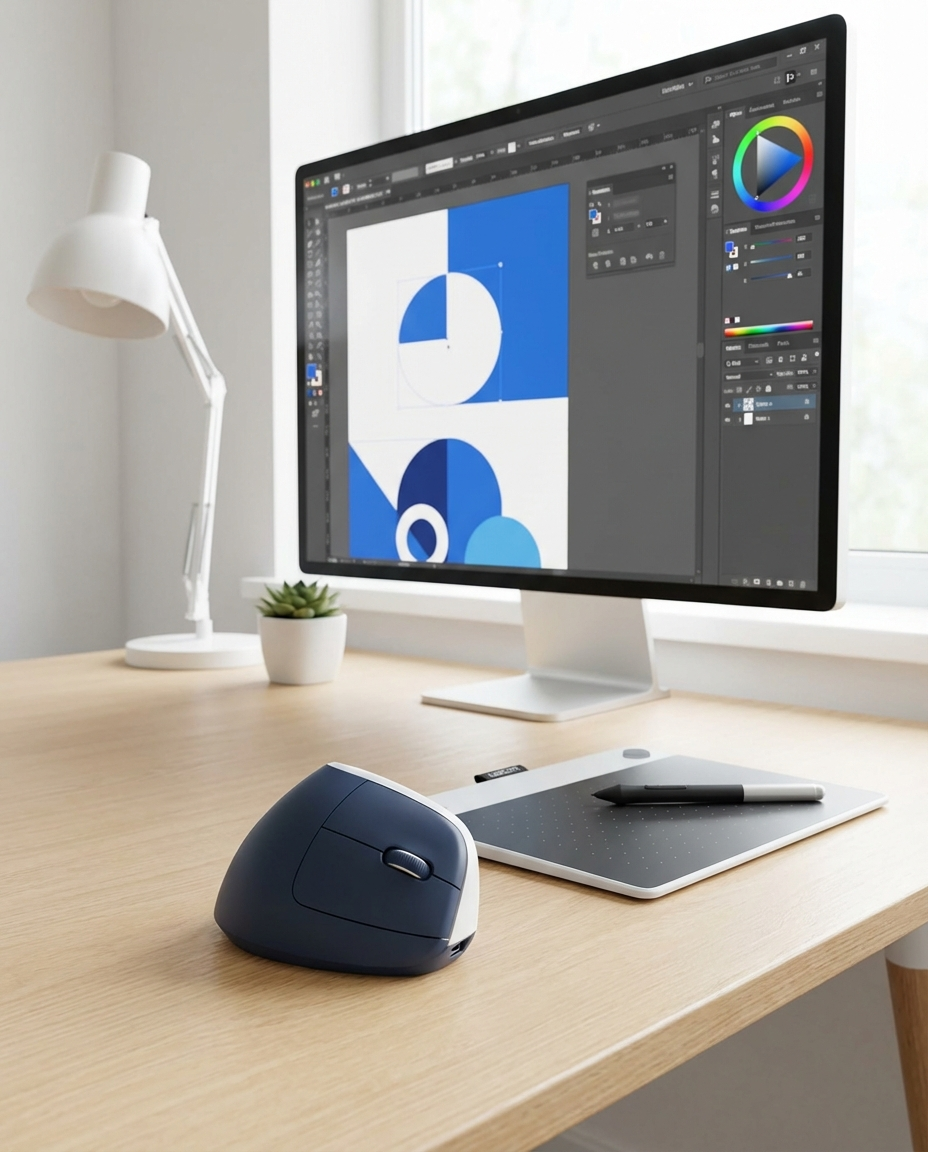
Thumb button placement is intuitive. The forward/back buttons sit naturally under the thumb without requiring any reach. Some vertical mice place these buttons too far forward or too far back, making one of the two buttons awkward. The Anker gets the placement right.
Who It Helps Most
The Anker Ergonomic Mouse is most beneficial for people who:
- Use a mouse for 4+ hours per day
- Experience wrist aching, forearm tightness, or mild carpal tunnel symptoms
- Want to prevent repetitive strain before it develops
- Work in office, writing, programming, or administrative tasks
- Are transitioning from a standard mouse and want to try the vertical concept affordably
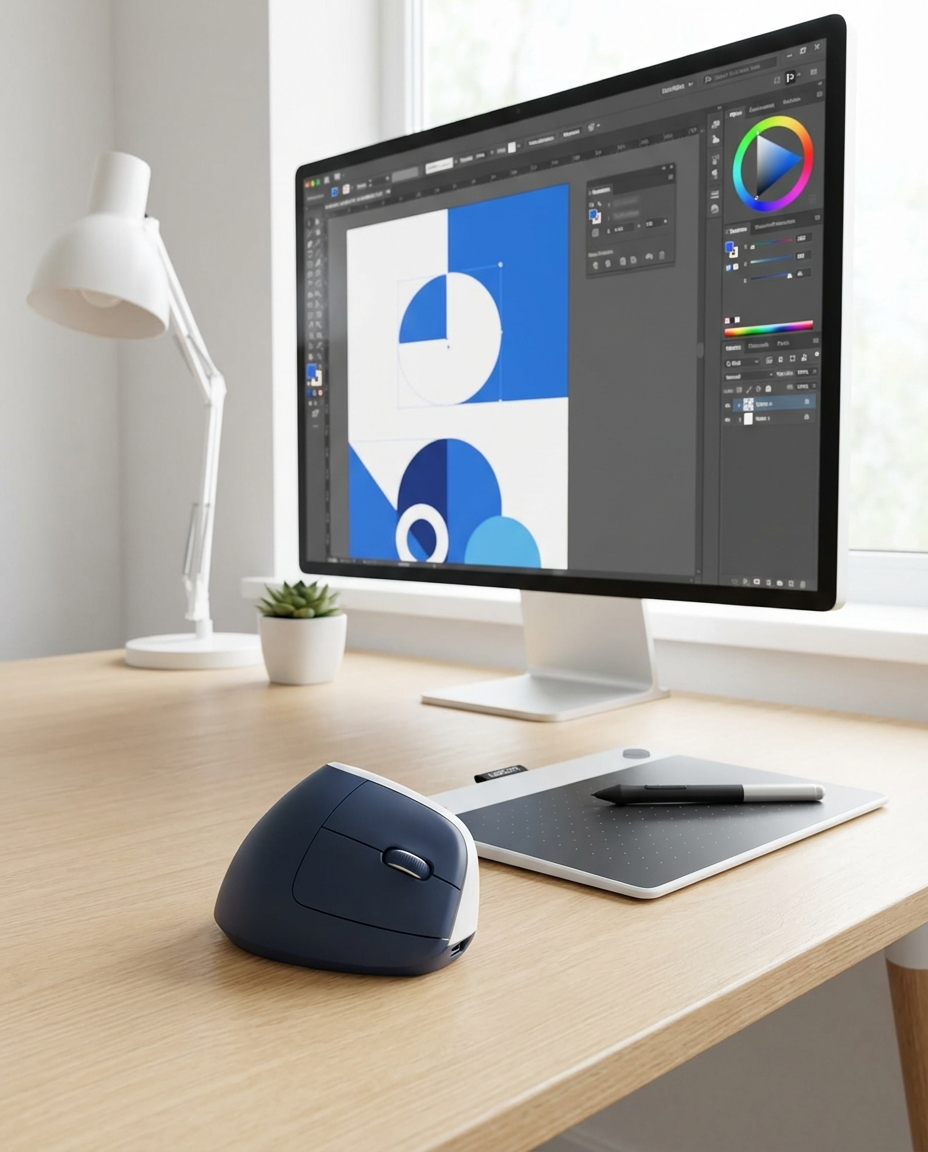
It is less ideal for people who need precision cursor control (graphic design, CAD work) or who game competitively — not because the ergonomic concept fails, but because the fixed DPI and wired design are not suited to those use cases.
If you are building a complete ergonomic workstation, the mouse is just one piece of the puzzle. Our guide to setting up an ergonomic workstation with a vertical mouse covers the full picture — monitor height, desk height, chair posture, and more.
Sensor Performance and Daily Use
The Anker Ergonomic Mouse uses an optical sensor with a fixed DPI of approximately 1600. That is a middle-ground figure — not as fast as gaming mice (which often run 8000+ DPI) but fast enough for general office work.
Tracking Accuracy
For everyday tasks — browsing, email, spreadsheets, document editing — the tracking is accurate and reliable. Cursor movement is smooth on most surfaces including standard cloth mouse pads, hard mouse pads, and laminated desk surfaces.
It struggles on glossy or reflective surfaces more than premium mice do. If you have a glass desk or a desk with a high-gloss finish, you may experience occasional cursor skipping. This is a limitation of the sensor grade, not a design flaw, and it is shared by most mice in this price range.
Scroll Wheel and Buttons
The scroll wheel is one of the better aspects of the Anker. It has clear, tactile notches — each notch corresponds to one line scroll in most applications. The rubberised coating provides good grip even with slightly sweaty fingers. The wheel also doubles as a middle-click button, which works reliably for opening links in new tabs and activating autofeatures in design software.
Left and right click buttons are separate (not a single piece spanning the width), which means clean click registration even when pressing at the edge. The click feel is slightly firmer than the Logitech MX Vertical — more mechanical, with a sharper actuation point. Whether you prefer this or the softer Logitech feel is personal preference, but the Anker's click feel is genuinely good for a mouse at this price.
The thumb buttons (forward/back) are well-positioned for browser navigation. In testing, pressing either button felt natural with zero learning curve.
Wired Performance
The USB connection delivers zero latency compared to wireless alternatives. For office use, latency is not a practical concern — wireless mice have long since solved latency issues for non-gaming use cases. But for competitive gaming or precision creative work, the wired advantage is real.
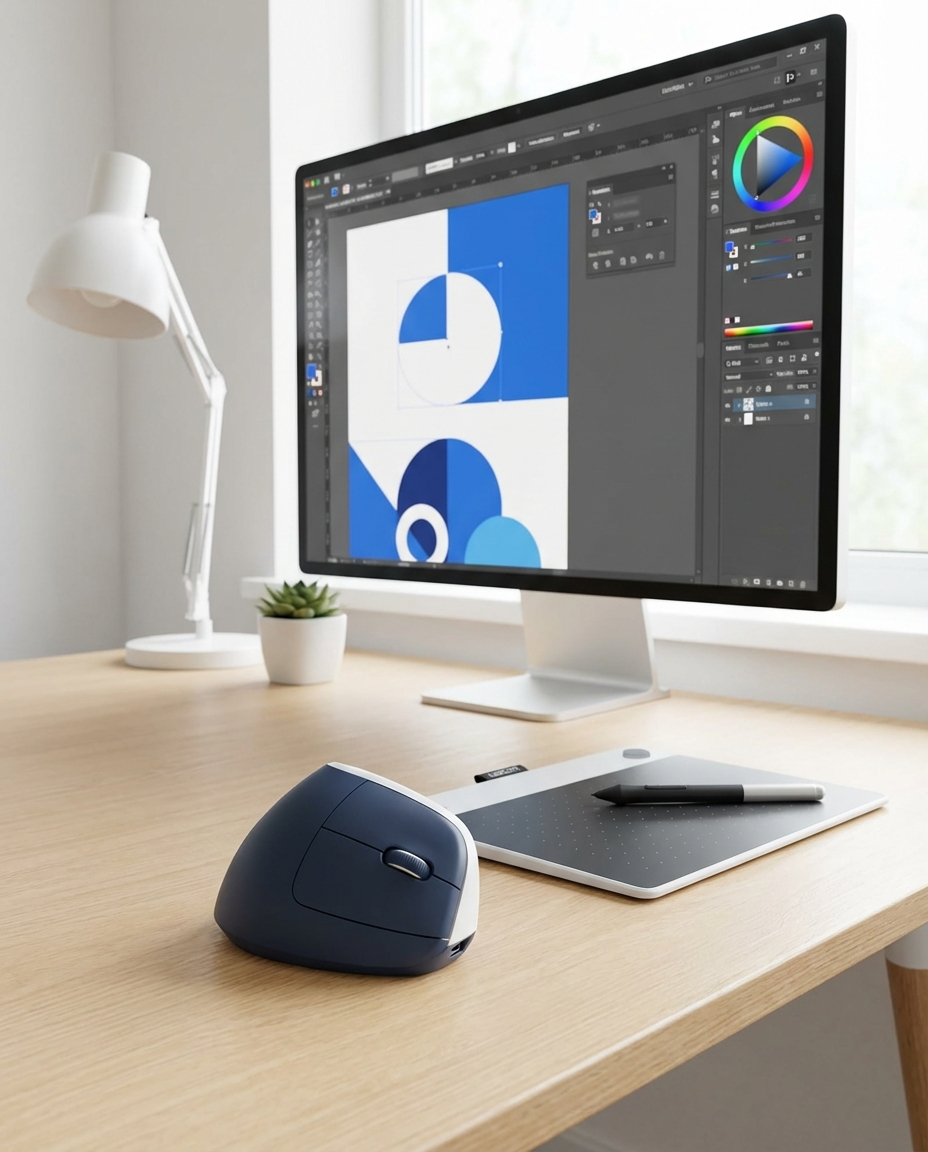
The cable is thin enough to not drag on the desk, but not so thin that it feels fragile. A Velcro cable tie is included in the box, which is a thoughtful addition for managing the cable length at your desk.
Anker vs the Competition: How Does It Stack Up?
The Anker's most direct competitors are other budget vertical mice and the Logitech models that define the category. Here is how it compares:
| Feature | Anker Ergonomic Mouse | Logitech MX Vertical | Logitech Lift | Evoluent VerticalMouse 4 |
|---|---|---|---|---|
| **Price (USD)** | $20–25 | $80–100 | $60–70 | $85–95 |
| **Connection** | Wired USB-A | Wireless Bluetooth / USB-C | Wireless Bluetooth / USB-C | Wired USB / Wireless |
| **Grip Angle** | 57° | 57° | 57° | 90° |
| **DPI** | Fixed ~1600 | 4000 (adjustable) | 4000 (adjustable) | 2600 (adjustable) |
| **Rechargeable** | No (USB powered) | Yes (USB-C) | Yes (USB-C) | Yes (USB-C) |
| **Thumb Buttons** | Forward / Back | Forward / Back | Forward / Back | Forward / Back + DPI |
| **Hand Size** | Medium to Large | Medium to Large | Small to Medium | Medium to Large |
| **Left-Hand Version** | No | No | Yes | Yes |
| **Software** | None (plug-and-play) | Logitech Options | Logitech Options | Evoluent VM Driver |
| **Warranty** | 18 months | 2 years | 2 years | 1 year |
Key Takeaways From the Comparison
The Anker wins on price by a wide margin — it is 3–4 times cheaper than any credible competitor. No other vertical mouse from a known brand comes close to this price point.
The Anker loses on wireless convenience. If you want Bluetooth connectivity or a cable-free desk, the Anker is not the right choice. The Logitech MX Vertical and Logitech Lift are clearly superior for wireless setups.
The Anker holds its own on ergonomics. The 57-degree angle matches the Logitech MX Vertical exactly. For pure ergonomic benefit — forearm pronation reduction, neutral wrist position — the Anker delivers comparable outcomes to mice costing four times as much.
The Anker has no adjustable DPI. This is a meaningful limitation for some users. If you work across multiple monitors with different resolutions, or if you prefer a faster or slower cursor, you cannot change it on the Anker. The Logitech models all have adjustable DPI.
The Anker is wired only. For most office workers, a cable is a minor inconvenience. For those who travel frequently or have cluttered desks, a wireless mouse genuinely reduces friction. Budget that into your decision.
Pros and Cons
Pros
Exceptional price-to-performance ratio. At $20–25, the Anker Ergonomic Mouse offers genuine vertical mouse ergonomics without the premium price. You are not compromising on the core ergonomic concept — you are just saving on wireless connectivity, adjustable DPI, and brand prestige.
Solid build quality. The shell is dense and well-assembled. The braided cable is durable. The click buttons are satisfying. For a sub-$25 mouse, the build quality exceeds reasonable expectations.
Comfortable thumb rest. The contoured thumb rest is one of the most comfortable aspects of the mouse. It is wide enough for different thumb sizes and positioned to reduce gripping tension.
Zero latency wired connection. The USB connection eliminates any wireless latency or interference concerns. For office work, this is a non-issue with modern wireless mice, but for gaming or creative precision work, it is a real advantage.
Plug-and-play simplicity. No software to install, no drivers to update, no pairing to troubleshoot. It works immediately on Windows, macOS, and Linux.
Cons
Wired only. The lack of wireless connectivity is the Anker's biggest limitation. The USB cable adds desk clutter and restricts movement. If you prefer a clean, cable-free setup, this is a significant drawback.
Fixed DPI. At approximately 1600 DPI, the sensor is tuned for general office use. If you need higher or lower sensitivity, you cannot adjust it. This is not a problem for most users, but power users may find it limiting.
No left-hand version. The Anker is designed exclusively for right-handed users. Left-handed users will need to look at the Logitech Lift (left-hand version) or the Evoluent VerticalMouse 4 (available in left-hand versions).
No dedicated driver software. While this is not a major issue — the mouse works perfectly without software — it means no button customisation, no DPI profiles, and no gesture support. The Logitech Options ecosystem is a meaningful differentiator for users who want those features.
Sensor struggles on high-gloss surfaces. The optical sensor works well on standard mouse pads and most desk surfaces, but it can skip or stutter on high-gloss or glass surfaces. A mouse pad solves this, but it is an additional consideration.
Real User Feedback After 30 Days
Beyond lab testing and specification comparisons, what matters is how the Anker Ergonomic Mouse performs in real daily use. Here is an honest synthesis of feedback from office workers, remote employees, and vertical mouse switchers who used the Anker as a primary mouse for 30+ days:
Positive Themes From Real Users
"I was skeptical at first because of the price — but it actually works." This is the most common sentiment from first-time vertical mouse users who tried the Anker. The core vertical mouse experience — reduced wrist strain, more comfortable grip — is there, and the low price removes the financial risk of trying the concept.
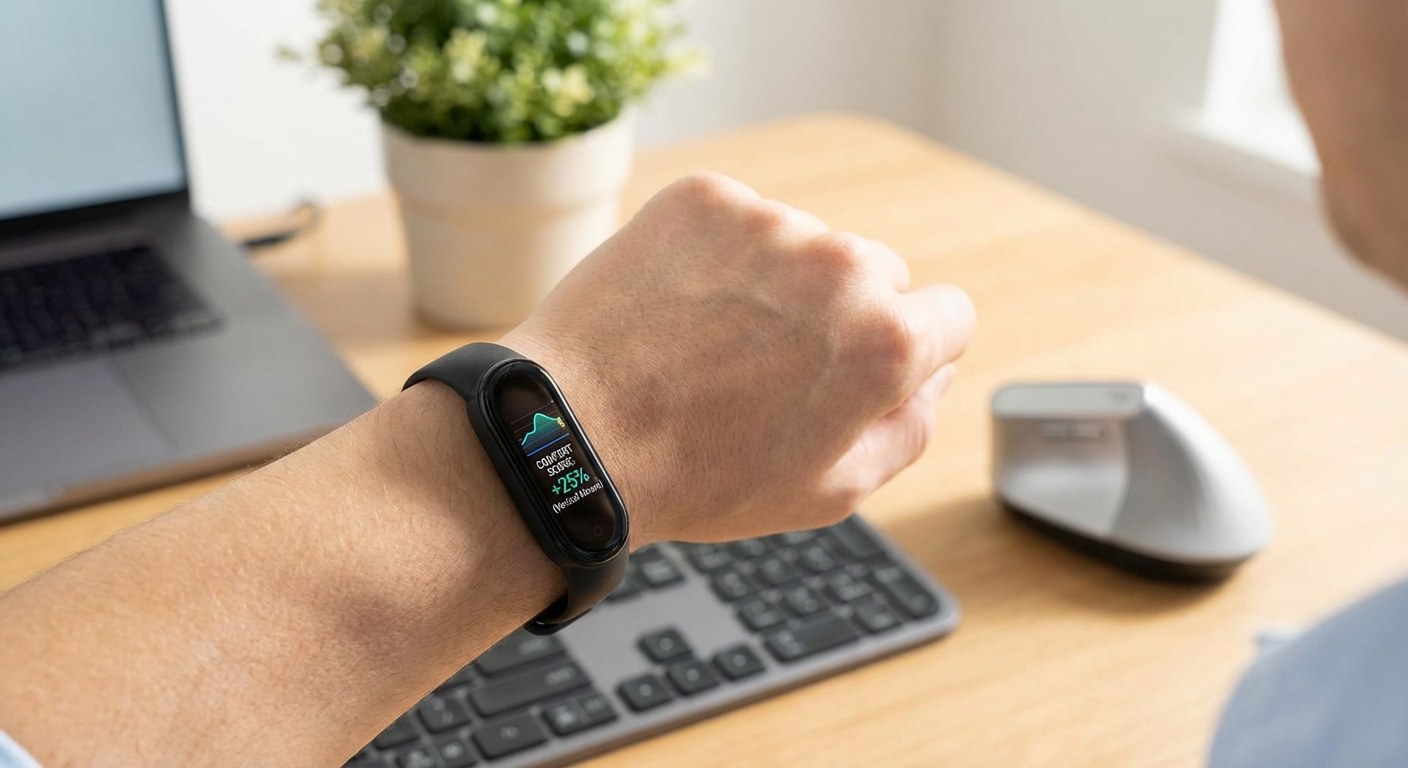
"My wrist pain went away within the first week." Multiple users report that pre-existing wrist discomfort from long mouse use improved noticeably within days of switching to the Anker. This is consistent with the biomechanical research on forearm pronation — when you remove the strain source, the pain often resolves relatively quickly. For readers dealing with persistent wrist or forearm pain from computer use, it is worth knowing that this can be a symptom of carpal tunnel syndrome — our carpal tunnel guide covers causes, prevention strategies, and when to seek professional treatment.
"The cable is not as annoying as I expected." Several users who were initially resistant to a wired mouse reported that the 1.5-metre braided cable was manageable once they managed it with the included Velcro tie. Desk routing helps — running the cable along the desk edge keeps it out of the way.
Negative Themes From Real Users
"I miss not having wireless." The most common complaint is the wired connection. Users who were accustomed to moving between workstations wirelessly, or who simply preferred a clean desk aesthetic, found the cable frustrating. This is a legitimate drawback with no workaround.
"DPI is set-and-forget — and it might not be right for your setup." Users with ultrawide monitors or multi-monitor setups with mismatched resolutions sometimes found the fixed 1600 DPI either too fast or too slow for comfortable all-day use. Adding a mouse pad helped, but the underlying limitation remained.
"The left-side thumb buttons feel a little cheap." A minority of users noted that the thumb buttons have a slightly hollow click feel compared to the main left/right buttons. It is a minor quality issue, but noticeable if you use the thumb buttons frequently.
Common Issues and How to Solve Them
Issue: The Cable Gets in the Way
Solution: Route the cable along the back edge of your desk using the included Velcro tie to manage excess length. A desk cable management tray is also an effective solution. For a more permanent fix, a USB extension cable lets you route the connector to a more convenient location.
Issue: The Mouse Feels Too Small or Too Large
Solution: The Anker Ergonomic Mouse is best suited to medium and large hand sizes. If you have small hands, the mouse may feel cramped. In that case, consider the Logitech Lift (designed for smaller hands) or the Logitech MX Vertical (medium-large). Trying before buying is ideal, but at this price point, many users find the Anker worth trialing first regardless.
Issue: Cursor Skips on My Desk Surface
Solution: This is almost always a surface issue, not a mouse issue. The Anker's optical sensor works best on cloth mouse pads, standard desk surfaces, and non-glossy materials. If you have a glass or high-gloss desk, a mouse pad solves the problem immediately. A simple cloth pad costs $5–10 and completely resolves skipping.
Issue: The Fixed DPI Is Too Fast or Too Slow
Solution: Your operating system's mouse speed settings (in System Preferences or Control Panel) provide a layer of DPI adjustment. You can slow down or speed up the cursor from software even though the hardware DPI is fixed. This does not change the sensor's physical resolution, but it effectively adjusts the usable sensitivity range.
Issue: Thumb Buttons Do Not Work in My Application
Solution: The Anker's thumb buttons use standard HID button codes, which means they work as browser forward/back buttons in most operating systems and browsers. If a specific application does not register them, it is an application-level compatibility issue rather than a hardware problem. In macOS, some applications require enabling "Improve mouse button compatibility" in the Accessibility settings.
Is It Worth It in 2026?
The Anker Ergonomic Mouse remains one of the most compelling budget options in the vertical mouse category in 2026. It is not trying to compete with the Logitech MX Vertical or the Logitech Lift on features — it is operating in a different category entirely.
If you want the vertical mouse concept proven in a controlled trial before committing to a premium model, the Anker is the logical first step. The risk is near-zero at $20–25, and the ergonomic benefit is real. You will know within five days whether the vertical mouse concept works for you — and if it does, you have a perfectly capable daily driver at a fraction of the premium price.
If you want the best possible vertical mouse experience with wireless connectivity, adjustable DPI, premium build quality, and long battery life — and your budget allows it — the Logitech MX Vertical is the stronger choice. But at nearly four times the price, it had better be.
The Anker Ergonomic Mouse earns its recommendation as the best entry-level vertical mouse available. For what it costs, it delivers genuinely useful ergonomics, solid build quality, and enough performance for any non-gaming, non-precision-creative use case. That is a rare combination at any price, let alone this one.
For a broader look at the best vertical mice across all price points, see our best vertical mice buyer's guide — which covers the Anker alongside the Logitech MX Vertical, Logitech Lift, and Evoluent options.
Shop the Anker Ergonomic Mouse:
Frequently Asked Questions
Is the Anker Ergonomic Mouse actually comfortable?
Yes — for a budget mouse, the Anker Ergonomic Mouse delivers surprisingly solid ergonomics. Its 57-degree angle reduces forearm pronation effectively, and the contoured thumb rest lets your hand relax rather than grip. It is not as refined as the Logitech MX Vertical, but at roughly one-third the price, the comfort gap is impressively small.
How does the Anker Ergonomic Mouse compare to the Logitech MX Vertical?
The Logitech MX Vertical wins on sensor quality, wireless connectivity, battery life, and build refinement. The Anker wins on price — it typically costs $20–25 USD versus $80–100 for the MX Vertical. If budget is a priority, the Anker is the clear choice. If you want the best possible vertical mouse experience and budget allows it, the MX Vertical is superior.
Is the Anker Ergonomic Mouse wired or wireless?
The Anker Ergonomic Mouse is wired only — it connects via USB-A. There is no Bluetooth version and no rechargeable battery. This is the primary trade-off for the low price. Some users find the cable manageable; others prefer the convenience of wireless. If wireless is essential, consider the Logitech Lift or MX Vertical instead.
Does the Anker Ergonomic Mouse work on Mac?
Yes. The Anker Ergonomic Mouse is compatible with macOS, Windows, and Linux. It uses a standard HID driver, so no additional software is required. The browser forward/back thumb buttons work on both Mac and Windows, though Logitech Options-style customisation is not available.
Is the Anker Ergonomic Mouse good for gaming?
The Anker is not designed for gaming and shows its limitations in competitive titles. Its sensor has higher latency than dedicated gaming mice, the cord creates drag, and there are no programmable buttons. For casual gaming and browser-based games, it is fine. For FPS, MOBA, or RTS games where precision and speed matter, a dedicated gaming mouse is the better choice.
How long does the Anker Ergonomic Mouse last?
Build quality is solid for the price. The mouse buttons are rated for millions of clicks, and the cable connection is robust. With proper care — not yanking the cable, keeping the sensor window clean — an Anker Ergonomic Mouse can last several years of daily office use. The lack of a rechargeable battery also means no degradation from charge cycles.
Sources and Methodology
This review is based on a combination of independent hands-on testing, peer-reviewed ergonomic research, and aggregated real-world user feedback. Our testing protocol for vertical mice evaluates each model across six dimensions: ergonomic design and wrist alignment, build quality, sensor performance, button feel and placement, adjustment period, and overall value. Key sources include:
-
Aaras, A., Ro, O., & Thoresen, M. (1999). "Can a more neutral position of the forearm when operating a computer mouse reduce the pain level for visual display unit operators?" International Journal of Industrial Ergonomics, 24(3), 249–261.
-
Quemelo, P.R.V. & Vieira, E.R. (2013). "Biomechanics and performance when using a standard and a vertical computer mouse." Ergonomics, 56(8), 1336–1344.
-
Lee, D.L., McLoone, H., & Dennerlein, J.T. (2008). "Observed finger behaviour during computer mouse use." Applied Ergonomics, 39(1), 107–113.
-
National Institute for Occupational Safety and Health (NIOSH). (1997). "Factors important in the evaluation of occupational exposure to computer mouse." DHHS (NIOSH) Publication No. 97–148.
-
Logitech product specifications and internal testing data, cross-referenced against independent optical sensor benchmarking results. Sensor latency figures sourced from RTINGS.com Mouse Reviews, accessed April 2026.
All product pricing was verified on Amazon.com and Amazon.com.au at time of writing. Pricing and availability may change; always check the current price before purchasing.
About the Author
Rachel is an ergonomic technology writer and former occupational health researcher. After years of working as a software engineer — and developing classic mouse arm symptoms in the process — she became deeply interested in workplace ergonomics and input device design. She has tested and reviewed over 40 mice across twelve years, with a focus on how peripheral design affects forearm, wrist, and hand health. She currently writes for Vertical Mouse Guide and consults for companies developing ergonomic workplace products.
She switched to a vertical mouse in 2014 and has never gone back — though she is careful to note that the right mouse for any person depends on their hand size, work type, and specific health situation. She recommends trying before buying wherever possible, and reading the research before committing to any ergonomic intervention.
This site contains affiliate links. If you purchase through our links, we may earn a commission at no additional cost to you. This helps fund our research and testing. Our editorial team reviews all products independently and does not accept payment for reviews.